
How to Localize App Store Screenshots Without Figma (Fast Multilingual Guide)
Localize App Store and Google Play screenshots into 10+ languages directly. Translate screenshot UI text without rebuilding or re-exporting Figma files.
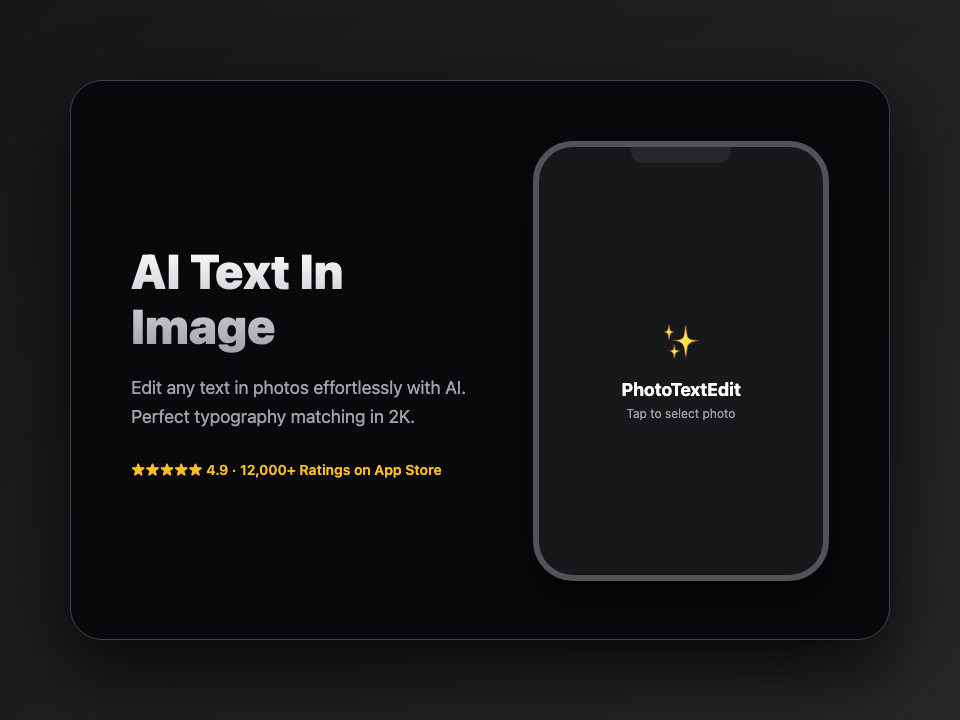
If you build mobile apps or SaaS products, you already know the golden rule of App Store Optimization (ASO): localized screenshots double your organic conversion rate. Showing English marketing headlines to a user in Japan, Germany, or Brazil immediately creates friction.
Apple and Google allow you to upload unique screenshot galleries for each language storefront. But actually creating them is a notorious developer headache.
The typical developer or agency workflow looks like this:
- Open Figma or Sketch.
- Duplicate 5–7 artboard frames across 10 target languages (50–70 frames total).
- Paste translations into each text layer.
- Manually re-adjust broken line wraps, font sizes, and button padding.
- Spend an hour exporting, renaming, and organizing hundreds of PNGs.
- When a single marketing tagline changes next month, repeat the entire cycle.
In this guide, we show you a dramatically faster alternative: editing screenshot marketing text directly on your finished PNGs without ever opening a Figma file.
The Challenge of Screenshot Typography
Why not just use a simple online image editor to change screenshot text? Because mobile UI text has specific characteristics that standard editors ruin:
- System Font Rendering and Subpixel Anti-Aliasing: iOS uses Apple San Francisco (
SF Pro), while Android usesRoboto. These typefaces render with distinctive subpixel smoothing and optical kerning at display scales. Standard editors slap down generic Arial or Helvetica, which looks visibly jarring on a polished iPhone mockup. - Device Bezels and Shadow Perspective: Modern promotional screenshots place the app inside a tilted, 3D device frame with ambient shadows and gradient backdrops. A simple rectangular patch cuts through the device glass or backdrop gradient.
- Pill Buttons and Call-to-Action Shapes: When you replace "Get Started" with "Commencer" in French, the button's rounded pill corners and internal padding must remain pristine.
Step-by-Step: Localizing Screenshots with PhotoTextEdit
Using PhotoTextEdit's dedicated Screenshot Text Editor, you can swap text directly on your rendered screenshots in seconds.
Step 1: Upload Your Master English Screenshot
Drop in your primary English promotional screenshot (e.g., iPhone 6.5" display at 1284 × 2778 px or 1242 × 2688 px).
Step 2: Enter the Target Language Text
Specify the current English headline and your translated copy:
- Original text:
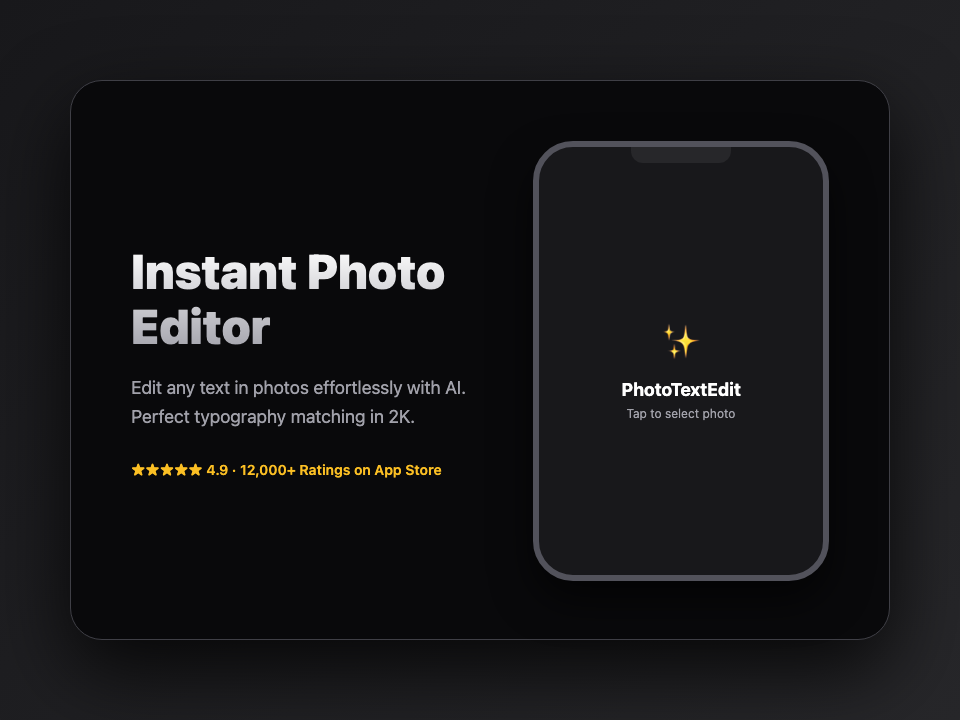
Instant Photo Editor - Replacement text:
Éditeur Photo Instantané(French) or即時照片編輯器(Traditional Chinese)
Or for call-to-action buttons:
- Original text:
START FREE TRIAL - Replacement text:
KOSTENLOS TESTEN(German)
Step 3: Run the In-Place Replacement
The AI automatically detects the typography style, aligns to the UI baseline, reconstructs any overlapping shadows or gradients beneath the old words, and typesets the new language seamlessly.
Step 4: Export Pixel-Perfect PNGs
Download the localized screenshot. The resolution, color profile, and pixel dimensions remain 100% compliant with Apple App Store Connect and Google Play Console guidelines.
Workflow Comparison: Figma vs. PhotoTextEdit
| Step | Traditional Figma Route | PhotoTextEdit Direct Route |
|---|---|---|
| Setup Time | 2–3 hours creating localized frame duplicates | 0 minutes (uses existing exported PNGs) |
| Translation Iterations | Manual re-aligning of broken text boxes | Automated baseline and margin detection |
| Batch Updates | High friction; requires design file access | Anyone on the growth or ASO team can do it |
| Turnaround Time | 2–3 days coordinating between team & translators | Under 5 minutes per storefront |
3 Best Practices for High-Converting Localized Screenshots
- Watch Text Expansion Ratios: Languages like German, French, and Spanish typically expand by 20% to 35% compared to English. If your English headline is
Fast Delivery, the German equivalentSchnelle Lieferungis noticeably longer. Choose short, punchy verbs so the text doesn't crowd device margins. - Respect Cultural Color Accents: While our AI preserves the exact theme colors of your buttons, ensure your localized headlines speak directly to local search habits.
- Test Top 5 High-ROI Tier-1 Markets First: If you don't have time to localize into all 30 App Store locales, start with the highest-converting non-English markets:
- Japanese (ja): High purchasing power; Japanese users strongly favor native localization.
- German (de): The largest economy in Europe.
- Spanish (es-ES / es-419): Massive coverage across Spain and Latin America.
- French (fr): High conversion rates in Europe and Canada.
- Traditional Chinese (zh-TW / zh-HK): High ARPU mobile markets.
Save Hours on Your Next App Update
Stop wasting engineering and design hours dragging text boxes in Figma.
Try our Screenshot Text Editor or PhotoTextEdit Studio today to prepare your multilingual App Store assets in record time.