
How to Update Text on Product Photos Without Re-shooting (E-Commerce Guide)
Update packaging labels, ingredients, or pricing on product photos with AI. Edit text on e-commerce images directly and save thousands on studio re-shoots.
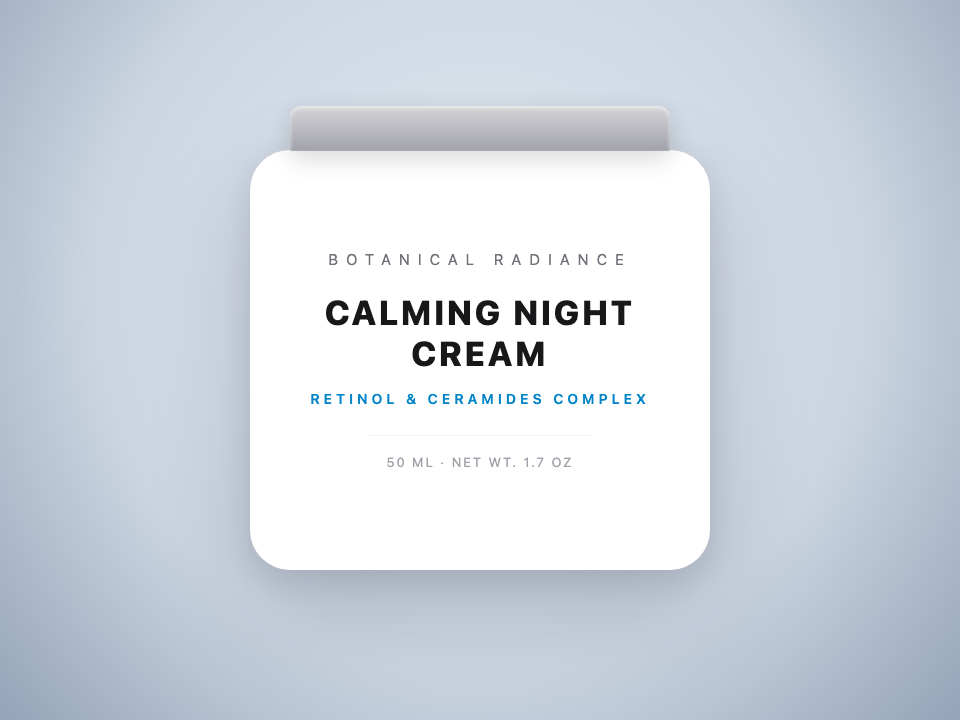
Running an e-commerce brand on Amazon, Shopify, or TikTok Shop means constant product iterations. You reformulate a skincare serum, tweak your food packaging net weight from 50g to 60g, update seasonal branding, or run a limited-edition bundle.
The physical packaging has changed, but your marketing assets haven't caught up.
Historically, updating product listing images meant one of two painful choices:
- Booking a commercial studio reshoot: Shipping samples, hiring photographers, setting up lighting, and waiting 2–3 weeks, costing anywhere from $500 to $2,500.
- Hiring a Photoshop retoucher: Hoping they don't smear the curved bottle reflections, textured cardboard grain, or foil-stamped typography.
In this guide, we show you how to update text directly on your existing high-resolution product photos in under 30 seconds using AI in-place text editing.
Why Product Packaging Text Is So Hard to Retouch
Product packaging photography is technically demanding because text is rarely printed on flat, matte surfaces. In real-world product shots:
- Cylindrical and Curved Geometry: Bottles, jars, and cans distort text along 3D cylindrical curves and perspective angles.
- Surface Lighting and Highlights: Glossy glass, matte aluminum, and amber plastic cast specular highlights and ambient gradients across printed letters.
- Physical Texture and Micro-Grain: Paper labels absorb ink with subtle bleeding, while frosted cosmetic bottles scatter light behind printed typography.
When a designer tries to "paint over" the old text in traditional software, they inevitably erase the underlying reflections and texture, creating an obvious "flat patch" that savvy shoppers immediately notice.
The Modern Workflow: AI In-Place Text Replacement
Instead of covering the surface or rebuilding the 3D scene from scratch, PhotoTextEdit uses neural font matching and in-scene rendering to swap the target words while locking every surrounding pixel into place.
Here is the exact step-by-step process:
Step 1: Upload Your Cleanest Product Photo
Upload your high-resolution packaging photo (PNG, JPG, or WebP up to 10 MB). For commercial listings, always use the highest-resolution camera export available (ideally 1000px or higher on the short edge).
Step 2: Enter the Original and Replacement Text
Specify the exact characters currently on the product packaging, followed by your updated copy.
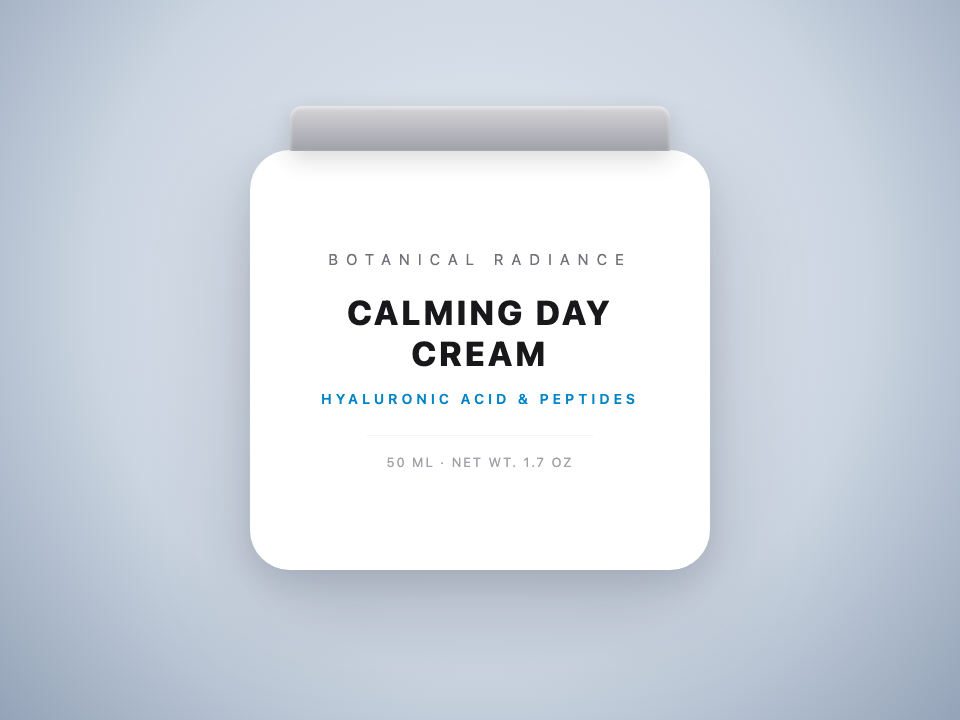
For example, when updating a cosmetic SKU from a Day Cream to a Night Cream:
- Original text:
CALMING DAY CREAM - Replacement text:
CALMING NIGHT CREAM
Or when updating weight and volume specifications:
- Original text:
NET WT 1.7 FL OZ / 50 ML - Replacement text:
NET WT 2.0 FL OZ / 60 ML
Step 3: Choose Your Rendering Tier
- Fast Mode (1 credit): Perfect for flat labels, carton boxes, and quick social media graphics.
- Pro Mode (2 credits): Delivers 2K ultra-high-definition output with authentic micro-texture, preserving paper fibers, metallic foil glints, and curved reflections.
Step 4: Download and Deploy
Review the generated preview. The AI automatically removes the original letters, reconstructs the surface material beneath, and renders the new typography matching the original font weight, tracking, and curvature. Download the crisp PNG and upload it directly to your Amazon or Shopify gallery.
Common E-Commerce Scenarios Where This Saves Thousands
| Scenario | Traditional Route | PhotoTextEdit Route |
|---|---|---|
| SKU Line Extensions (Day vs. Night cream, Flavor variants) | $800+ studio reshoot per SKU variant | 30 seconds, ~$0.20 per image edit |
| Formula & Ingredient Updates (e.g., "100% Organic" to "100% Vegan") | Retouching queue taking 5–7 business days | Instant live update before next ad flight |
| Regulatory & Volume Labeling (Net weight, FDA compliance badges) | Scrapping existing catalog image renders | Edit the specific number without touching bottle art |
| Limited-Edition Holiday Batches ("Holiday Edition 2026", "Spring Blend") | Redesigning packaging 3D mockups | Swap headline copy directly on the hero bottle image |
3 Pro-Tips for Indistinguishable E-Commerce Edits
- Keep Character Count Balanced: When replacing text on curved bottles, aim for a similar length (e.g., swapping
LEMON MINTforBERRY MINT). If replacing a short word with a much longer sentence, consider whether the label naturally has the physical margin to support it. - Type the Full Word Segment: If you need to change
50 MLto60 ML, typing50 MLas the target text yields cleaner kerning than targeting only the single digit5. - Use Pro Tier for Amazon Main Images: Amazon requires zoomable hero images (at least 1600px on the longest side). Running your edit on Pro mode ensures 2K clarity that withstands high-magnification shopper hover zoom.
Ready to Update Your Product Images?
You don't need to delay your product launch or burn your marketing budget on another photography session.
Try PhotoTextEdit with free signup credits today, or explore our Match Font Editor to see how our AI handles complex curved packaging typography in real time.