
Why Midjourney and AI Image Generators Mess Up Text (And How to Fix It)
Why do Midjourney and DALL·E mess up text? Understand diffusion model limitations and learn how to fix misspelled words in AI art without re-rolling prompts.
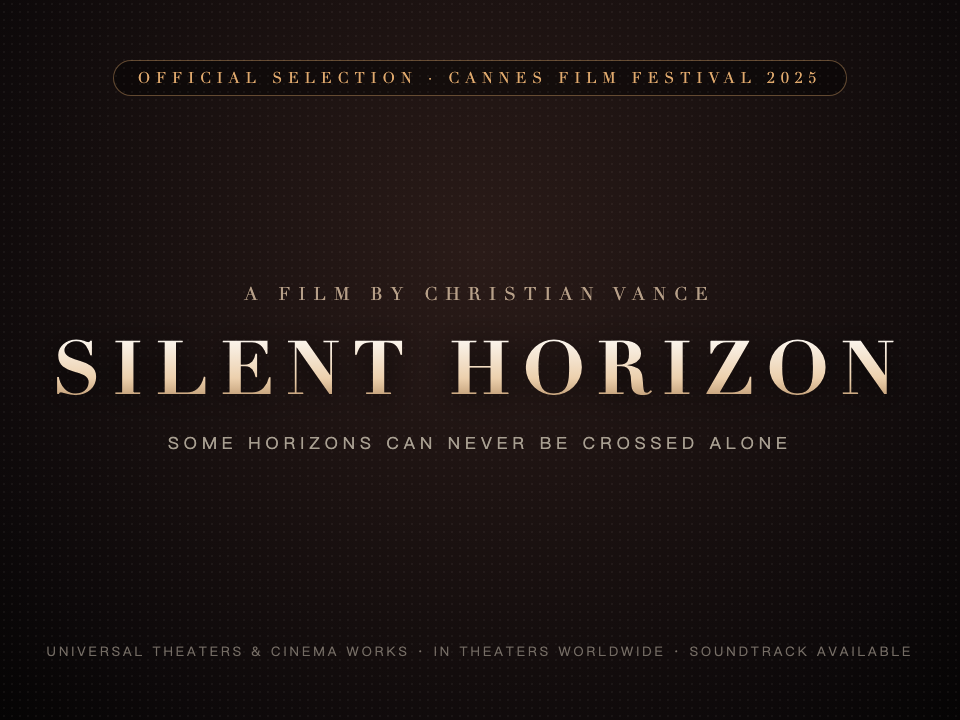
Anyone who has spent time with AI image generators like Midjourney, Stable Diffusion, or FLUX knows the frustration: you spend 20 minutes refining a prompt, and the AI produces a breathtaking retro poster or futuristic cyberpunk storefront. The composition, lighting, and colors are magnificent—except the storefront sign reads COFEFE BAZAR instead of COFFEE BAZAAR.
Re-rolling the prompt is risky: the next generation might spell the word correctly, but the composition and artistic magic you loved will be gone forever.
Why do state-of-the-art AI models struggle with basic spelling, and how can you cleanly repair text in your AI-generated art? Let's break down the underlying mechanics and walk through the fastest fix.
Why AI Image Generators Garble Words
To understand why AI misspells words, it helps to understand how diffusion models differ from language models:
1. AI Draws Letters as "Textures", Not Symbols
When an AI model like Midjourney renders an image, it is not "typing" characters from a font library. Instead, it predicts pixel noise patterns. To a diffusion model, the letters in VINTAGE CAFE are simply visual shapes with contrast and texture—no different from the ridges of tree bark, the ripples of water, or the folds of cloth. Because the model lacks an internal grammar or spelling dictionary, letters easily blend together, lose crossbars, or duplicate strokes.
2. The Bottleneck of Text Encoders (CLIP / T5)
Diffusion models translate text prompts into numerical vectors using text encoders like CLIP or T5. While these encoders understand high-level concepts (such as "steampunk coffee shop"), they compress letter sequences into token representations. A model often understands that "there should be text on that sign," but loses track of the exact sequential ordering of the individual characters.
3. Training Data Noise
Millions of web images in AI training datasets contain stylized logos, skewed signs, watermarks, and distorted text. The model absorbs these distortions as valid visual representations of text, increasing the likelihood of generating gibberish letters.
The 4 Ways Creators Try to Fix AI Text (And Where They Fail)
| Method | Effort Required | Quality & Preservation | Cost |
|---|---|---|---|
| Re-rolling Prompts | High (5–20 attempts) | Low (completely reshuffles the composition) | Wastes GPU credits |
| Inpainting in Midjourney / SD | Moderate | Hit-or-miss (frequently generates new typos) | Extra render time |
| Manual Photoshop Patching | High (15+ minutes) | High (requires finding font & matching noise) | Photoshop subscription |
| AI In-Place Text Repair (PhotoTextEdit) | 30 Seconds | Flawless (preserves art style, light & texture) | Free trial / Pennies |
Step-by-Step: How to Fix Misspelled AI Art in 30 Seconds
Instead of gambling with prompt re-rolls, you can repair the exact garbled letters directly on your finished image using PhotoTextEdit's AI Art Repair Tool.
Step 1: Upload Your AI-Generated Artwork
Go to the Fix Text in AI Generated Image tool. Drag and drop your artwork (PNG, JPG, or WebP). There is no need to crop or convert the image beforehand.
Step 2: Enter the Original and Corrected Text
- In the Original Text field, type the misspelled word exactly as it appears in the image (e.g.
COFEFE). - In the New Text field, type the clean, correct word you want (e.g.
COFFEE).
Step 3: Run AI Replacement and Download
Click Generate. The model will locate the target letters, reconstruct the surface behind them, and redraw the replacement text while matching:
- Lighting & Glow: Retains neon bloom, streetlamp shadows, and ambient reflections.
- Surface Texture: Seamlessly blends into weathered wood grain, rusted metal, or canvas brushstrokes.
- Perspective: Adheres to the tilt, rotation, and slant of the original sign.
Download your full-resolution result with zero loss in visual quality.
Pro Tips for Getting Perfect Results on AI Art
- Keep Character Count Similar: If the AI generated an 8-letter gibberish word, replacing it with an 8-to-10 letter word ensures the typography fits the sign naturally without crowding.
- Handle Multiple Words One by One: If a banner has two separate typos, fixing them in two separate fast passes produces cleaner results than trying to edit the entire line in a single prompt.
- Use Pro Mode for Stylized 3D or Embossed Art: For heavy 3D bevels, chrome reflections, or glowing neon outlines, select Pro Mode in the editor for maximum fidelity.
Ready to rescue your favorite AI art? Try the AI Text Fixer now and turn flawed generations into finished masterpieces.